A hard drive that starts clicking, ticking, grinding or beeping is telling you something specific: a mechanical part inside is failing. What you do in the next few minutes matters more than anything that happens after. The short version: shut it down, leave it alone, and get it to someone who does data recovery before you try anything else.
Here is what the noise means, what to avoid, and how we handle a failing drive here on Hilton Head Island.
What a clicking hard drive actually means
A traditional hard drive (HDD) stores your data on metal platters spinning at high speed. A tiny read/write head on an arm floats just above the surface, closer than the width of a human hair. When the drive is healthy, you hear a faint whir and the occasional soft tick.
Abnormal sounds usually point to one of these:
- Repeated clicking or ticking: the head is trying to read, failing, and resetting. This often means a damaged head, or a drive that can't read the information it needs to start up.
- Grinding or scraping: something is touching the platter surface. This is the most urgent case, because every second it runs can destroy data permanently.
- Beeping or buzzing with no spin-up: the motor can't turn the platters, sometimes because the heads are stuck to the surface.
None of these fix themselves. A drive that clicks today and seems fine tomorrow is still failing.
What to do right now
- Power it down. If you can shut the computer down normally in a few seconds, do that. If it's frozen and the drive is grinding, hold the power button until it turns off. For an external drive, unplug it.
- Leave it off. Don't plug it back in "just to check."
- Write down what happened. Was it dropped? Did the power go out during a storm? Did it get warm or wet? When did the noise start? Details like these help whoever works on it.
- Make a list of what matters. Client records, business files, QuickBooks, an email archive. Knowing what you need back helps decide how far recovery should go.
What not to do
A lot of permanent data loss on failing drives happens after the first symptom, not before it. These are the usual culprits:
Running recovery software
Free recovery programs work by reading the whole drive, often more than once. On a drive with a damaged head, that's the worst thing you can do. Recovery software is meant for logical problems (deleted files, a corrupted partition) on a drive that is mechanically healthy.
Rebooting again and again
Every power-on is another chance for the heads to scratch the platters. "One more try" adds up fast.
Running CHKDSK or disk repair tools
These write changes to the drive and can make recovery harder. Never on a noisy drive.
Opening it up
Hard drives are assembled in clean rooms for a reason. At that speed, a speck of dust on a platter does real damage. Once a drive has been opened in an ordinary room, the odds of recovery drop sharply.
Putting it in the freezer
This old internet trick causes condensation inside the drive, and moisture on the platters makes things worse. Our island humidity doesn't help.
Tapping, shaking or dropping it "to unstick it."
It doesn't free stuck heads. It damages them.
If the files on the drive matter to you, the safest thing you can do is nothing. Turn it off and call someone who handles data recovery for a living.
SSDs fail differently
Newer laptops and many desktops use solid state drives (SSDs), which have no moving parts. They don't click or grind. When an SSD fails, you're more likely to see:
- The drive disappearing completely, with a message like "no boot device found."
- The computer freezing, or getting stuck on the logo screen.
- Files that won't open or open as garbage.
- The drive suddenly becoming read-only. Some SSDs lock themselves this way near the end of their life to protect what's left.
The same rules apply: stop using it, don't keep rebooting it, and don't run repair tools. One extra caution with SSDs: files you delete are often gone quickly, because the drive clears deleted space in the background. If you've accidentally deleted something important from an SSD, stop using that computer right away.
Want us to take a look?
Tell us what's going on. You'll hear back from a person who can actually fix it.
Logical vs. physical failure
Data recovery falls into two broad groups, and which one you have decides almost everything about the job.
Logical failure means the drive hardware works but the data on it is damaged or hard to reach. Accidentally deleted files, a formatted drive, a corrupted partition, a drive Windows suddenly says needs to be formatted, or files scrambled by malware all fall here. These can often be worked on at our bench with specialized tools.
Physical failure means something in the hardware is broken: the heads, the motor, the circuit board, or the memory chips in an SSD. A clicking or grinding drive is almost always a physical failure. Fixing it means replacing internal parts in a clean-room environment.
How we handle a failing drive
When you bring a drive to us for data recovery in Hilton Head, we start with the least invasive approach that has a reasonable chance of working.
- Evaluate before we read. We listen to it, check how it identifies itself, and decide whether it's safe to power on at all.
- Copy it, don't work from it. If the drive is readable, we make a sector-by-sector copy onto a healthy drive and do all further work on the copy. The failing drive gets read as few times as possible.
- Recover what matters first. We pull the files you told us are most important first, then the rest.
- Send physical failures to a clean-room lab. If the drive has failed mechanically, we tell you so, explain what's involved, and with your go-ahead send it to a clean-room data recovery lab that has the equipment and donor parts to open it safely.
We can't promise every file comes back. Some drives are too far gone, especially after a lot of rebooting or a scratched platter. What we can do is avoid making it worse by guessing.
Once your files are back: make sure this never matters again
Every hard drive eventually fails. Whether that's an inconvenience or a disaster comes down to one thing: backups.
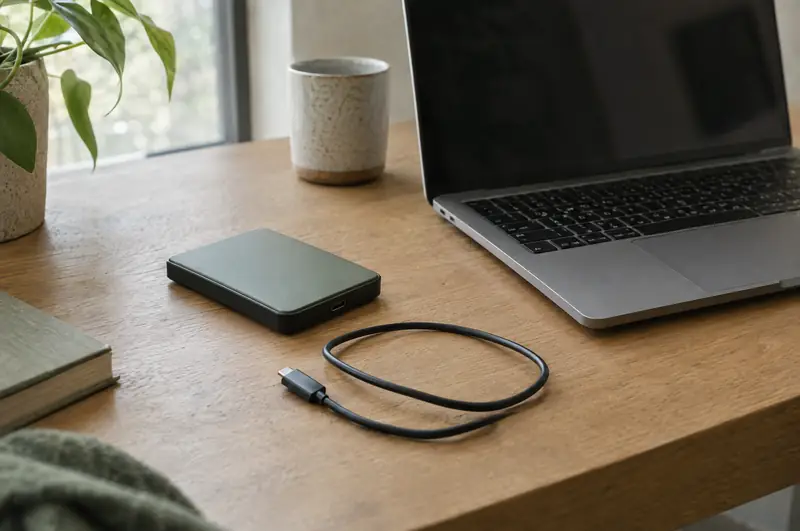
- Keep at least two copies off the computer. One nearby, like an external drive, and one in the cloud. We use IDrive for cloud backup.
- Make it automatic. A backup you have to remember to run eventually stops happening.
- Check that it works. Every so often, restore a file from the backup and open it.
- Plan for hurricane season. If you evacuate, an external drive sitting next to the computer is still in the same house. A cloud copy goes wherever you go.
If the drive gets replaced as part of a repair, we can set up backups on the new one at the same time. Our data backup page covers how we set that up for small offices, and our computer repair page covers drive replacement.
When to call us
If a drive in your computer, or an external drive, is clicking, grinding or has vanished, turn it off and call us before trying anything else. We help small businesses across Hilton Head Island and Bluffton. Reach us at (843) 422-2201 or through our contact page, and we'll tell you the safest way to get the drive to us.